New: attendance for live sessions

The app that replaces your smartboard.

No smartboard to buy or install.

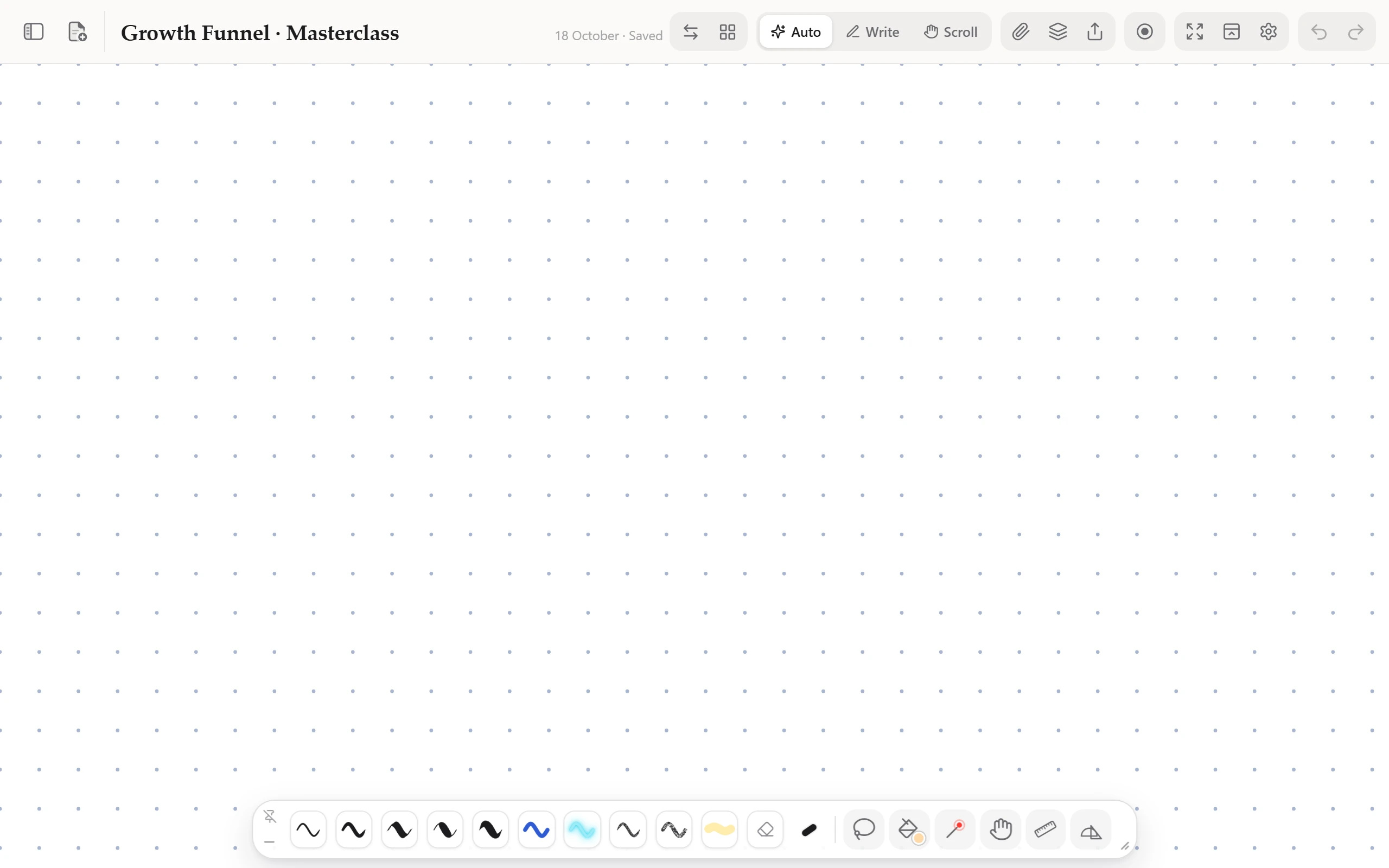
The TV or projector you have becomes the board. Students follow on their phones.

  • Write on slides
  • Record lessons
  • Real-feel pens

Opens in your browser · No download · Made in India

VivinkOne place to explain.

Stop juggling five tools

Everything you open to study or teach — now one page.

  • Notebook
  • Whiteboard
  • PowerPoint
  • Screen recorder
  • Smartboard
Vivink Built for teachers, coaches, educators, lecturers, professors, coaching centres, schools, creators and businesses.
Start teaching

Use cases

One app. Seven ways to teach.

Pick yours — or watch them play, one after another.

Use case 1SchoolsCoachingHome tuitionOffices

The TV on the wall is your smartboard now.

Open Vivink on the class TV and type its code on your phone. Everything you write shows on the TV — and on students’ phones — as you write it.

1Open Vivink on the class TV

Step 1 of 8

Open Vivink on the class TV

Its browser, or a laptop or streaming stick on HDMI. It shows a short code — no sign-in on the TV.

  • No smartboard to buy or service
  • Teach facing everyone, from anywhere
  • Works with the TV you already have
Start teaching

The whole workflow

It starts in your group. It ends there too.

Share the link in your WhatsApp group, where your students already are. Teach live on Vivink. Send the notes and the recording back, and solve doubts on the same page.

Your group

On her laptop · Vivink

Before the session · 5:30 pm

She opens a note, or brings in her PDF slides: Insert → Slides to teach on, and every page becomes a board. It all runs in the browser, with nothing to install.

  • Starts and ends in your group
  • No app or account for students
  • Notes, recording, doubts in one app
Start teaching

Opens in your browser · Nothing to install · No app for students

How a session runs

Before, during, after. One app the whole way.

From your slides to the last doubt of the night: everything a session needs, in the browser, with nothing to install.

  1. Open your lesson

    • Open a note, or bring in your PDF slides: every page becomes a slide.
    • It runs in the browser, on a laptop, iPad, phone or smartboard. Nothing to install.
    • Add a blank board after any slide, for questions.

    In your group

    Session at 6 today: Chapter 4, Quadratics.

  2. Start the session

    • Online session sends your voice with the board; In-person session keeps it off.
    • On the class TV, open Vivink and type its code. No sign-in on the TV.
    • A student limit, a password, names and your own questions, like Roll number or Section: only if you want them.

    In your group

    Live board · Quadraticsapp.vivink.com

    Follow my board live: app.vivink.com/v/K7Q2M8XP

    +91 98•••••12 ~Kabir

    Joined ma’am

  3. Teach live

    • Every stroke reaches their phones and the TV as you write.
    • They hear your voice. A student can ask to speak: you allow one at a time, with Mute and End.
    • Who’s here shows who joined and who left.
    • Record the lesson: your page, voice and face.

    In your group

    Meera

    Awaaz aa rahi hai, ma’am

  4. 1 / 5End session · Save the list · notes to the group

    Share it, see who came

    • End session: keep the notes open, or close the link. The PDF and the recording go to the group.
    • Past sessions shows who came: the average time watched, who joined late, left early or came back. Save the list.
    • Calendar view keeps every session; a busy day opens its list.
    • Doubts come back as photos: solve them over the photo and send them back.

    In your group

    PDFQuadratics.pdfthe notes
    Today’s sessionvideo
    Aarav

    Ma’am, Q4?

  • Nothing to install, ever
  • One link for everyone
  • Everything after the session, in one place
Start teaching

Opens in your browser · Nothing to install · No app for students

Live session

Not just a link. A whole session.

Choose who gets in. Hear a student when a hand goes up. See who came, and for how long — and find every session again later. It’s all in Live, beside your board.

1Before the session

Your session, your rules.

Choose how many can join, add a password, and ask each student’s name before the board opens. Every switch is off until you turn it on.

Up to 50

Choose how many can join: 20, 50, 100, your own number, or no limit. Your next session starts with the same limit.

Make one for me

A password in one tap, or type your own. Say it out loud or write it on the board.

Their name first

Students type a name before the board opens. Their phone remembers it for this session.

Your own questions

A roll number, a section, a batch: up to five, answered as they join.

Only your teacher sees this

Names and answers go to you alone. A question about a phone or an email says so.

One link, up to 1000

A whole hall can follow one session link. Lower the limit any time: nobody already in is sent away.

2During the session

Hear your students, one at a time.

Turn on Students can ask to speak. A hand goes up on a student’s phone; you allow one at a time, and choose who hears them.

Who hears them

  • In personSuggested in person: phones in one room would echo.
  • In an online sessionSuggested for an online session: everyone hears the question, so you don’t have to repeat it.

3As the session ends

Attendance, without a register.

Ask for a name when they join, and the attendance list fills itself: who came, who left and when, and for how long. Save it as a spreadsheet.

1They type their name

Before the board opens. Their phone remembers it.

2You see who’s here

Each name, with the time they joined.

3Save the list

A spreadsheet, any time: during the session or after.

  • Here nowThose in the session first, with the time they joined.
  • LeftDimmed, with the time they left. Back within 25 seconds is the same visit.
  • Tap a nameTheir answers, and every visit: Joined → Left → Joined again → Here now.
  • Save the listA spreadsheet of who came, when, and for how long.

4After the session

Every session, kept.

Each session you end stays in Past sessions until you delete it: when it ran, the board, and who came. Find it on a card, or by its day.

Every session, kept

Each session you end stays, with its board and its attendance list, until you delete it.

Calendar view

Find a session by its day. A busy day says “8 sessions”; open it for each one.

Did they stay?

Each card shows the average time watched, and who joined late, left early or came back.

Who came, when

Open a session: everyone on one line across it, each visit a bar, a gap for time away.

Save the list

A spreadsheet of who came, when, and for how long. Save it any time.

Only you see it

Names and answers are yours alone. They stay with that session until you delete it.

Start teaching

Every switch is off until you turn it on · No app or account for students

Teach together

Bring in another teacher. Share only what you choose.

Invite a co-teacher by email. They teach from the notes you pick — or only view them. Change it, or end it, whenever you like.

  1. 1Invite them by email

  2. 2Pick the notes they see

  3. 3Let them teach, or only view

  4. ✓Your notes, on their screen

Sessions they run on your notes stay yours, attendance and all. See how it works

One note, on every screen you own

  • Laptop & MacBook
  • iPad
  • Android tablet
  • TV & smartboard
  • Phone

Opens in Chrome, Safari or Edge — nothing to install, and it syncs between them.

Then and now

Start a class. Not a project.

A smartboard is ordered, delivered, installed, learned and serviced — and then serviced again. With Vivink, the board is the TV your school already has: open it, type the code, write. Every phone in the room follows.

Setting up a class

Then A smartboard

Now Vivink

Session is live. On the TV and every phone.

Her view

Her class in front of her. The board in her hands.

She writes on her iPad from anywhere in the room, facing her class. The TV behind her and every phone show each line as she writes it.

The ink

Screens made us type. We still think in ink.

Ten pens, each with its own nib. This is Vivink's own ink engine, running right here — pick a pen and write.

Fountain penSwells as you press, tapers as you lift.
Try it — write here

Works with Apple Pencil, any stylus, a mouse — or just your finger.

Pricing

One Vivink. Every feature.

No basic plan. No locked features. Every plan has everything.

Save 25%

Yearly

₹5,349/ year

Just ₹446 a month — ₹1,839 less than paying monthly.

Start yearly
Limited-time deal

Lifetime

₹11,249once

Pay once, use it for life. This deal ends soon.

Get lifetime

What you get

Everything Vivink does — in every plan.

Live

Your board on the TV, and on every phone

  • Show on a TVOpen Vivink on any TV and type its code. No sign-in on the TV.
  • Share the sessionA QR code and a link: students follow in the browser — no app, no account.
  • Your voice, onlineIn an online session, students hear you as you write.
  • Ask to speakA student taps Ask to speak. You allow one at a time, and choose who hears them: only you, or everyone.
  • After the sessionKeep the notes open for revision and the PDF — or close the link.
  • Instant syncA change on one of your devices shows on the others at once.

Your session

Who comes in, and who was there

  • Session passwordOff until you turn it on. Students type it before the board opens.
  • Student limit20, 50, 100, your own number or no limit. Up to 1000 on one link.
  • Names, and your questionsStudents give their name, and answer up to 5 questions of yours, like a roll number or section.
  • Who’s hereWho joined and when, who left, and each student’s visits.
  • Save the listA spreadsheet of who came, when, and for how long.
  • Past sessionsEvery session is kept until you delete it, as cards or on a calendar, with who came.

Write

Ink that writes like a real pen

  • 10 pensBallpoint, Fountain, Calligraphy, Pointed nib, Brush, Marker, Neon, Pencil, Chalk and Highlighter — plus an eraser.
  • Any size, any colourThree quick sizes, a slider and a colour picker for every pen.
  • BeautifyShaky writing comes out smooth and neat.
  • Shape snapDraw a circle, box or arrow and hold the pen — it turns perfect. Show its size in cm if you like.
  • Palm rejectionRest your hand on the screen while you write with the Pencil.

Boards & paper

The right page for every lesson

  • 3 layoutsOne endless page, A4 pages, or 16:9 slides.
  • Teaching boardsChalkboard, Green board, Navy board, Lecture black and Whiteboard.
  • 9 papers, or any colourIvory, Cream, Linen, Parchment, Legal pad, Kraft, Rough gray, white and black.
  • 13 line stylesRuled, Narrow, Inset, Cornell, Grid, Graph, Dots, Isometric, Music and more.
  • Margin lineAdd a margin, and set how strong and what colour the lines are.

Teach

Everything a class needs

  • Your slidesDrop in a PDF — every page becomes a slide. Add a blank board after any slide.
  • Show a websiteAny tab from your browser, live on your board and visible in your ongoing session — for tech tutorials and demos. Write over it.
  • Laser pointerPoint at anything; the red glow fades by itself.
  • Geometry boxRuler, set squares, protractor and compass — lines run straight along them.
  • Photos, videos, filesPut them right on the page, and write over the photos.
  • Lasso and fillSelect your writing to move, resize, recolour, duplicate, flip or turn it; tap a shape to fill it.
  • Board switcherJump back to the last board in one tap.

Record

Your lesson, saved as a video

  • Record your pageOn every device — your writing, live, as you teach.
  • Record the whole screenOn a laptop or MacBook — any app, with the computer’s sound.
  • Voice and faceYour voice, and your face in a circle you can move, resize and zoom.
  • Pause anytimePause and resume; the video saves straight to your device.

Organise

Find any note in seconds

  • Folders and pinsDrag notes into folders; pin the ones you need most.
  • Handwriting searchSearch finds the words inside your handwriting — not just titles.
  • Auto titlesUntitled notes are named from what you wrote, read on your device.
  • Recently deletedBring a note back within 30 days.
  • UndoGo back up to 300 steps.

Everywhere

On every screen you own

  • Every screenLaptop, MacBook, iPad, Android tablet, smartboard and phone.
  • SyncWrite on one device, open it on another.
  • Works offlineOpens and lets you write without internet.
  • Export and backupAny note as a PDF or an image; all your notes in one backup file.
  • Home Screen appFull screen and Focus mode — just you and the page.
  • Day and NightLight or dark, and the toolbar wherever you want it.

Questions

Good to know.

Do I need to download anything?

No. Vivink opens in your browser — Chrome, Safari or Edge — on a laptop, MacBook, iPad, Android tablet, smartboard or phone. Write with an Apple Pencil, any stylus, a mouse or your finger. You can also add it to your Home Screen and open it like an app.

I already use a free whiteboard. Why pay for Vivink?

A free board gives you a blank board. Vivink puts your notebook, whiteboard, slides and screen recorder on one page — with ten pens that write like real ones, on every screen you own. One place to teach, take notes and record, instead of four apps.

How do I bring in my PowerPoint, Keynote or Canva slides?

Save your deck as a PDF (or as pictures) and add it as slides. Every page becomes a slide, in order — write on any of them, and add a blank board after any slide when you need room.

Can I record my lessons?

Yes — your page, your voice and your face in a circle, with pause and resume, saved straight to your device. On a laptop or MacBook you can record the whole screen too, with the computer’s sound. On iPad and Android tablets, browsers let Vivink record its own page — full-screen recording there is coming with the Vivink iPad app.

Do I need a smartboard — or anything on the TV?

No. Any TV with a web browser works — or a laptop or streaming stick plugged into it by HDMI. Open Vivink on it and type the code it shows into your phone or iPad. Nothing to install, and no sign-in on the TV.

Can I show a website or software in a session?

Yes — great for tech tutorials and demos. Turn on Show a website in Settings, then pick one of your browser tabs under Insert → Website. It shows live in a window on your board, visible in your ongoing session; you can write over it, tuck it away, and it goes into your recording too. You sign in on the site in its own tab, so your passwords never reach Vivink. On a computer, in Chrome or Edge.

Can students hear me in an online session?

Yes. Start an Online session and your voice goes with the board: students tap Listen and hear you as you write, in their browser — no app, no account. In person, keep the voice off, so the phones don’t echo.

Can students talk to me in a live session?

Yes, if you turn on Students can ask to speak. A student taps Ask to speak, and you allow one at a time, with Mute and End. You choose who hears them: only you, or everyone.

Can I stop strangers joining my session?

Yes. Turn on Ask for a password (or tap Make one for me): students type it before the board opens, so say it out loud or write it on the board. You can also choose how many can join: 20, 50, 100, your own number up to 1000, or no limit. Once it’s full, new students are told “This session is full.”

Can I take attendance?

Yes. Turn on Ask for a name when they join, and add up to 5 questions of your own, like a roll number or section. Who’s here shows who joined and when, and who left. Save the list gives you a spreadsheet of who came, when, and for how long.

Where do I see my past sessions?

In Past sessions, at the foot of your notes list. Every session you end is kept until you delete it, as cards or on a calendar. Open one to see who came, when they joined and left, and for how long.

Who sees my students’ names and answers?

Only you see the attendance list and the answers. Other students see a classmate’s name only while everyone hears them speak. The list stays with that session until you delete it in Past sessions, and a question about a phone number or an email tells students “Only your teacher sees this.”

Where are my notes kept — and does it work offline?

Every stroke is saved on your device the moment you write. Once you’ve opened Vivink, it opens and lets you write without internet, and your notes sync to your other devices when you’re back online. Search and auto titles read your handwriting on your device.

Do the plans have different features?

No — Monthly, Yearly and Lifetime all include every feature. The only difference is how you pay: month to month, once a year, or once for life.